
 By
By I created this post to help you with all the requirements you’ll need to check before working on deploying your Horizon Cloud Next-Generation using Microsoft Azure.
Enjoy this step-by-step!
Microsoft Azure Subscription Requirements
Requirements Checklist for Deploying a Microsoft Azure Edge
- Create one or more Service Principals in Microsoft Azure Subscription
Source:
- Create a Microsoft Azure User Managed Identity
- Network Contributor role in the management VNet’s resource group
- Managed Identity Operator role at Microsoft Azure subscription scope
Note: Horizon Edge using an AKS cluster requires a user-managed identity with the Network Contributor role at the management VNet’s resource group scope and the Managed Identity Operator role at the Microsoft Azure subscription scope
- Sign in to the Azure Portal.
- On the search box, type Managed Identities and click on it.
- Click on Azure role assignments (on the left).
- Select your Azure Subscription
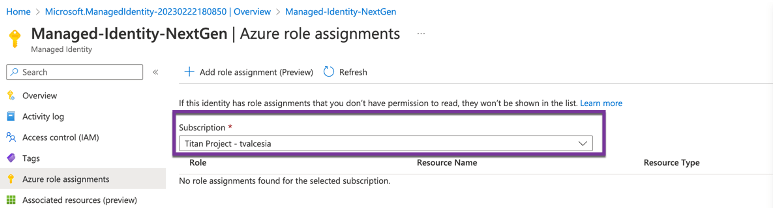
- Select Scope: Subscription and Role accordingly:
- Managed Identity Operator role at Microsoft Azure subscription scope

- Click on Save
- Now let’s add another role accordingly:
- Network Contributor role in the management VNet’s resource group

- Final permissions will be:

Source:
- Register Resource Providers for your Microsoft Azure Subscription
Source:
- Let’s check whether all resource providers are registered into your Azure Subscription:
- Microsoft.Authorization
- Microsoft.Compute
- Microsoft.ContainerService
- Microsoft.KeyVault
- Microsoft.MarketplaceOrdering
- Microsoft.ResourceGraph
- Microsoft.Network
- Microsoft.Resources
- Microsoft.Security
- Microsoft.Storage
- Microsoft.ManagedIdentity
Microsoft Azure Capacity Requirements
Minimum Microsoft Azure capacity available for Horizon Cloud Next-Generation
| VM | SO | Serie | Quantity |
| Horizon Edge Gateway | Linux | Standard D2s v3 | 4 Nodes (during steady state) 5 Nodes (during the upgrade process) |
| Unified Access Gateway | Linux | Standard F8s v2 | 2 per Node (during steady state) 4 per Node (while a software upgrade is being performed) |
| Master Images (GPU) | Windows 10 / 11 | Standard NV12s v3 | * |
| Master Images (non-GPU) | Windows 10 / 11 | Standard DS2 v2 | * |
URL:
Network Requirements
Firewall Rules
- As a new environment, you need to check the Firewall Ports and URLs needed to work with your Security / Network Specialist to open all necessary ports:
- https://docs.vmware.com/en/VMware-Horizon-Cloud-Service—next-gen/services/hzncloud.nextgen/GUID-D2CCC8D9-791F-46D7-9396-B0B7EB064D34.html#GUID-D2CCC8D9-791F-46D7-9396-B0B7EB064D34
Azure Virtual Networks
VNet Creation (this is an example configuration from my environment using Microsoft Azure)
- On the Search page, let’s now create VNet accordingly necessary for Horizon Cloud Next-Generation
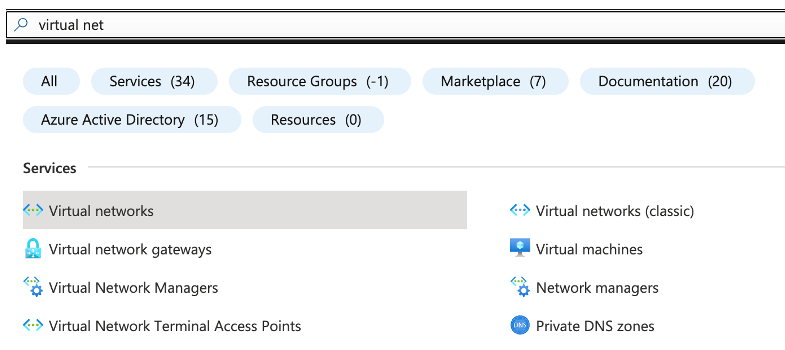
- Click on the Create button.

- Select the Resource Group we’ve created on the step before

- Type VNET name to be made. In this example: HCoA-VNET will be created.
- Check the Region to be created on the same one your Resource Group belongs to.

- Click on Next: IP Addresses

- We will need 3 (three) Subnets to be created:
- Management subnet — /26 minimum
- Desktop subnet – Primary (tenant) — /27 minimum
- DMZ subnet — /27 minimum
- Create three non-overlapping subnet address ranges in classless interdomain routing (CIDR) format in the VNet
*** IMPORTANT ***
Note: Horizon Cloud Next-Gen supports up to 20,000 sessions. If this is your case, your Desktop Subnet should support it. Stay alert when configuring this step and configure it properly to your use case.
In my example /27 network will support 30 hosts


***
- Usually, I start deleting the default subnet created, so we can create our own:

- All Subnets will be created using the IPv4 address space you specified here:

- Now, let’s add a subnet:
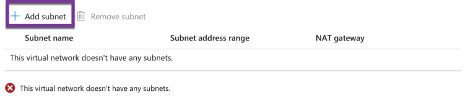
- We will have the following subnets created:
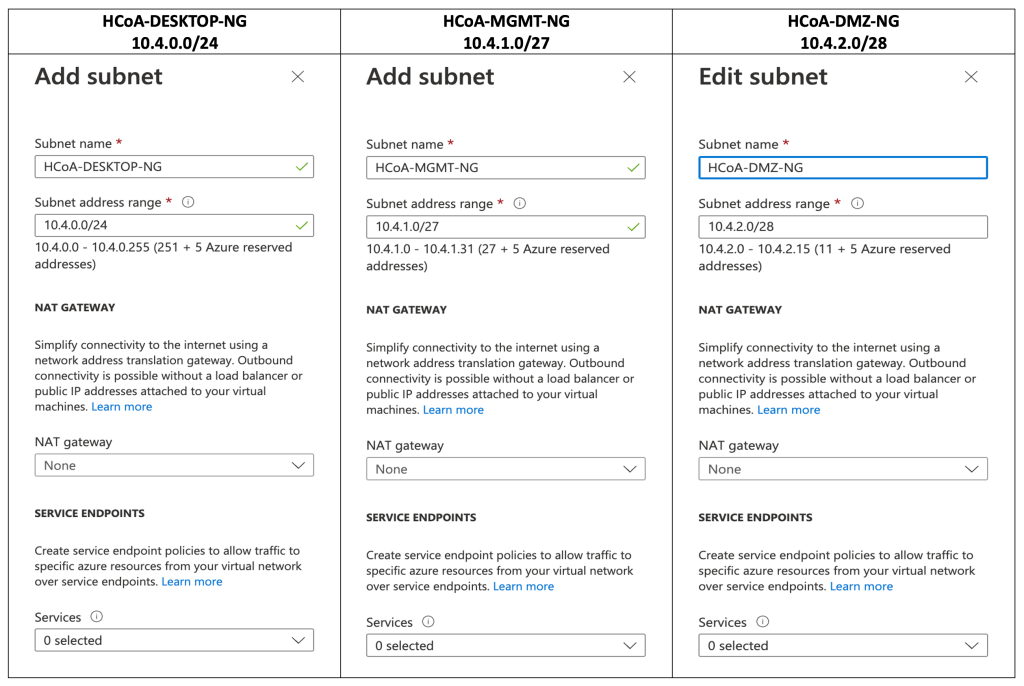

- Let’s keep security as follows.

- Let’s keep tags as follows (or add yours accordingly).

- Review your configuration.

- Click on Create

- Create NAT GATEWAY
Azure NAT gateway can be used to translate outbound flows from a virtual network to the public internet.
- Type NAT and click on NET Gateways
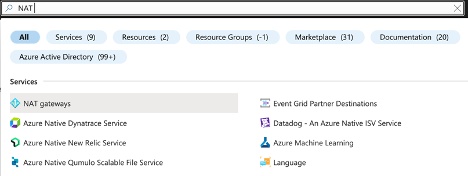
- Let’s click on Create.

- Select the Resource Group we created in the previous steps.
- Let’s use the following NAT gateway name: HCoA-NG-GroupNAT
- Don’t forget to use the same Region.

- On Outbound IP, select a new public IP address to be used as Net Gateway (or create a new one)

- On Subnet, select the Management Subnet you created to be bounded.

- On the tag, let’s keep the default at this moment.

- On Review + create, validate all configurations.

- Click on Create

Note: After NAT Gateway has been created, check whether your Management Subnet has NAT Gateway properly configured, otherwise change it to use NAT Gateway accordingly picture below:

- DNS
Regarding Horizon Edge using an AKS cluster, if the VNet you are using for the Horizon Edge deployment has a custom DNS server, you must add the Microsoft Azure DNS IP address 168.63.129.16 as an upstream DNS server.
- Let’s check the DNS Servers under VNET we created for Next-Gen.
- We need to add your DNS IP Address and Microsoft Azure DNS IP Address (168.63.129.16) as an upstream DNS Server.

Create CIDR for Horizon Edge Gateway
- Service CIDR — /27 minimum
- Pod CIDR — /21 minimum
- Docker Bridge CIDR — /26 minimum (not necessary for new environments)
To successfully deploy an AKS cluster, you must comply with the following Microsoft Azure requirements. At the time that you deploy Horizon Edge using the Horizon Universal Console, ensure that the Service CIDR, Pod CIDR, and address space of the Management subnet’s VNet do not conflict with the following IP ranges:
- 169.254.0.0/16
- 172.30.0.0/16
- 172.31.0.0/16
- 192.0.2.0/24
Here you have a graphical example of an AKS cluster configured using the provided examples on this document, for easy understanding.

Unified Access Gateway Requirements
- Certificate or certificates for the Unified Access Gateway in PEM format matching the FQDN.
Identity Provider Requirements
When Microsoft Azure Active Directory is your identity provider, a user with Global Administrator privileges must do the following.
- Approve the requested permissions.
- Provide consent for the entire organization.
When Workspace ONE Access is your identity provider, a user with admin privileges must do the following.
- Approve the requested permissions.
- Provide consent for the entire organization.
Active Directory Requirements
One of the following supported Active Directory configurations:
- On-premises Active Directory Server connected via VPN/Express Route
- Active Directory Server located in Microsoft Azure
- Microsoft Azure Active Directory Domain Services
Domain Bind Account and Auxiliary Bind Account (two accounts)
The following permissions are required:
- List Contents
- Read All Properties
- Read Permissions
- Read tokenGroupsGlobalAndUniversal (implied by Read All Properties)

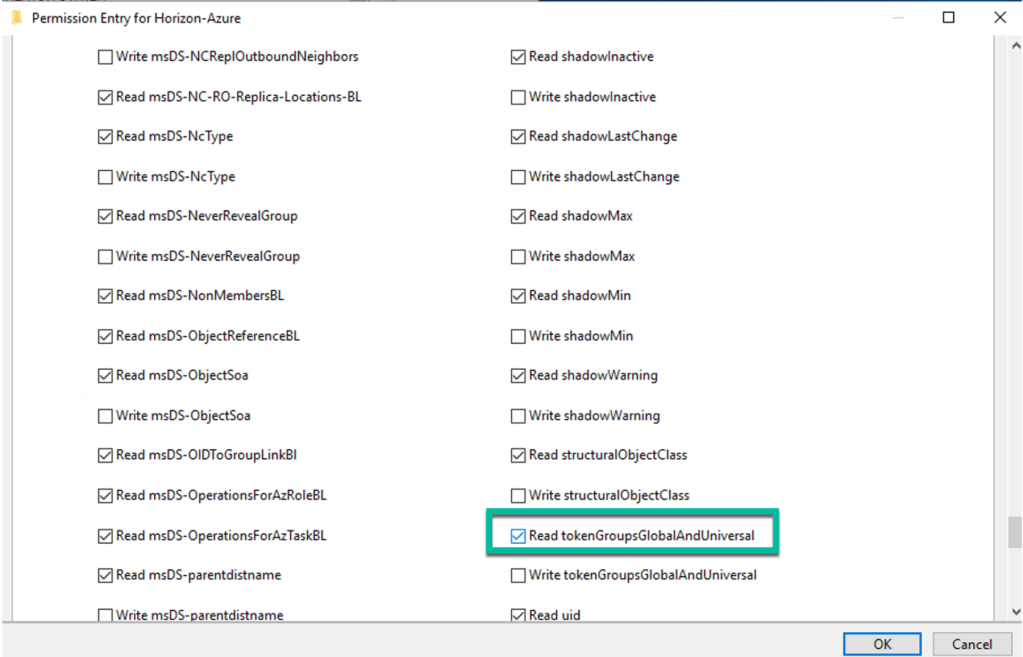
Important:
- sAMAccountName attribute:
- Must be 20 characters or less.
- Cannot contain any of the following characters: “/ \ [ ] : ; | = , + * ? < >
- Set account password to Never Expire
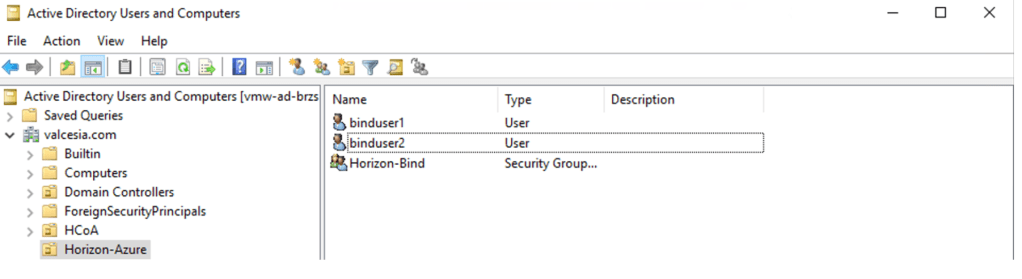

- Domain Join Account and Auxiliary Domain Join Account (two accounts)
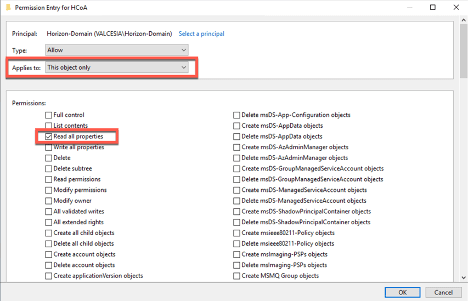
The following permissions are required:
- Read All Properties – this object only
- Create Computer Objects – this object and all descendant objects
- Delete Computer Objects – this object and all descendant objects
- Write All Properties – Descendant Computer objects
- Reset Password – Descendant Computer objects
Important:
- sAMAccountName attribute:
- Must be 20 characters or less.
- Cannot contain any of the following characters: “/ \ [ ] : ; | = , + * ? < >
- Set account password to Never Expire
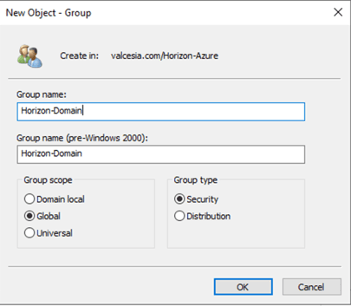


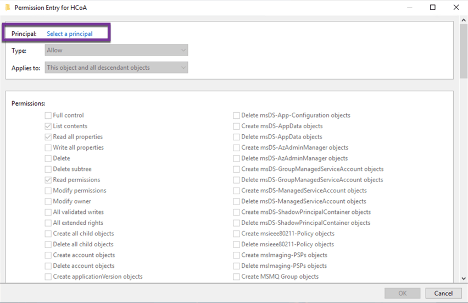
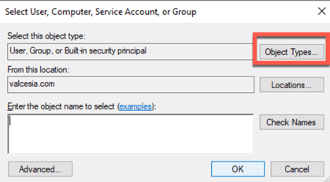
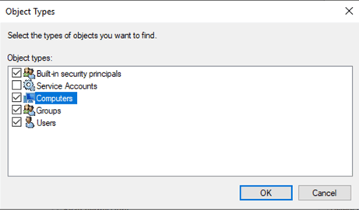
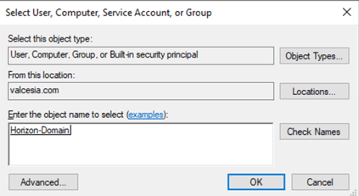
Tip: Scroll to the bottom and select Clear All to configure properly:

The following permissions are required:
- Read All Properties – this object only
- Create Computer Objects – this object and all descendant objects
- Delete Computer Objects – this object and all descendant objects
- Write All Properties – Descendant Computer objects
- Reset Password – Descendant Computer objects


***
Well, this is all I would like to share with you, based on my works and annotations during some PoCs and solution implementation.
If you’re ready and would like to start working on configuring your Horizon Cloud Next-Gen, just follow this URL to move forward.
Enjoy the ride! Thanks!

 The EUC Blog